

Before you start: The admin area is at shootingscore.app/admin. On the left you see the menu – the entries at the top (Overview, People, Data entry, Results list, Cash desk …) are what you need on competition day; the settings are under Admin. Entries such as Events, Templates or Users are only visible to the Admin role.
1Register & confirm
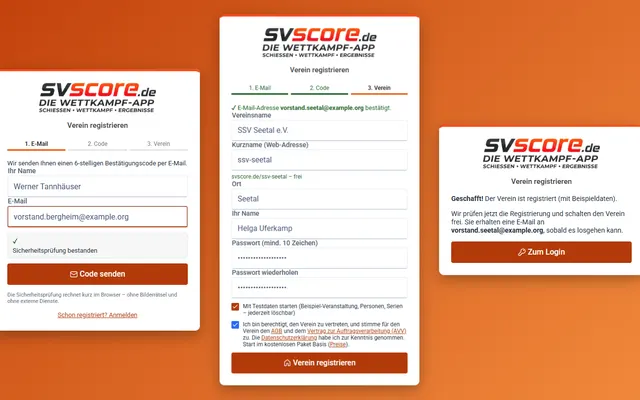
- Step 1 – e-mail: Open shootingscore.app/admin/registrieren and enter your name and e-mail address. A short security check runs invisibly in the browser (no picture puzzles, no external services) – as soon as “Security check passed” appears, click Send code.
- Step 2 – code: Enter the 6-digit confirmation code from the e-mail and confirm.
- Step 3 – club:Club name, short name (web address), town and a password (at least 10 characters). The short name becomes part of your address:
shootingscore.app/<shortname>– short, without spaces, e.g.sv-musterstadt; you can see immediately whether it is available. - Tick Start with test data if you want to try things out first: you get a sample event with people, series, teams and cash desk. Under Admin › Club you can remove the test data later with one click – your own data stays untouched.
- Your club is then active immediately – sign in at shootingscore.app/admin.
- Recommended: set up two-factor authentication with an authenticator app under Admin › Settings.
Your club starts on the Basis package – free forever, 1 event per calendar year with up to 30 shooters.
2Club details, logo & certificate template
- Admin › Club: name, town, e-mail, website, link to your club's legal notice and the name on the labels. Under Certificate signatories you can enter up to four names plus “place, date” for the certificates.
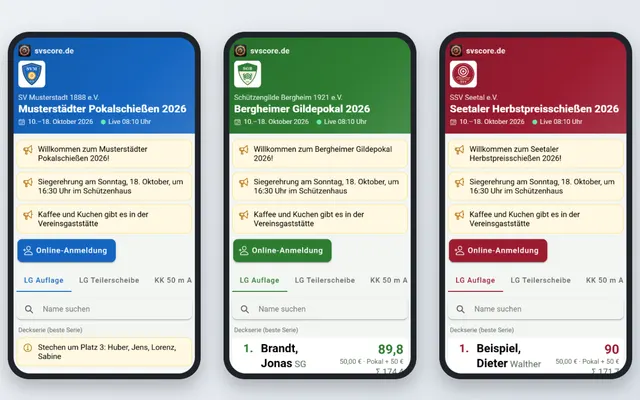
- Colours & logo (also under Admin › Club): choose a primary colour and optionally an accent colour – a contrast check warns about hard-to-read colours – and upload the club logo (PNG, JPG or WebP, max. 1 MB). Colours and logo appear in the admin area, results page, online registration, participant app, TV display and on the notice board printout.
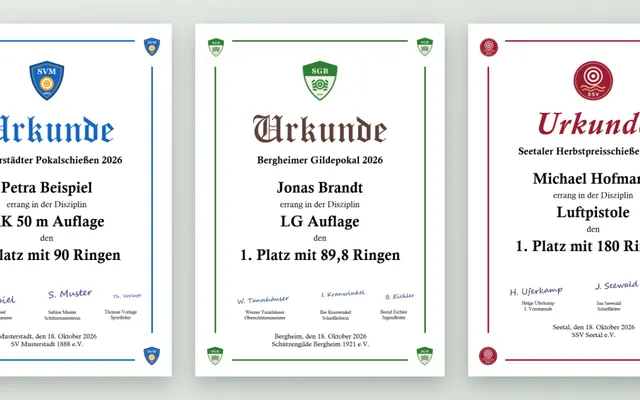
- Admin › Templates: there is a standard template for certificates (and the privacy notice). Download it as DOCX, design it in Word with crest/logo, font and signatures and upload it again via Upload your own. The Mail merge fields list shows which placeholders (name, discipline, place, points …) svscore fills in. Sample PDF shows the result immediately, Reset to standard undoes everything.
Custom templates are part of the Verein package or Veranstaltungspass; the Basis package uses the standard certificate.
Delete club and account: At the very bottom of Admin › Club an admin can permanently delete the club with all its data. For safety, a confirmation code is sent by e-mail and the short name must also be typed in. Export any data you need beforehand (people, results, cash book/DATEV) – deleted means deleted.
3Users & roles
- Admin › Users › Invite user: enter name and e-mail, choose a role. The person receives an e-mail and sets their own password.
- Data entry – for helpers at the cash desk and scoring: people, cash desk, data entry, results lists, certificates.
- Admin – additionally events, age classes, templates, users, club, association as well as subscription & invoices.
- Users can be blocked, reset via Send password link, or have their two-factor authentication reset. Every change is logged with name and time.
4Create an event
- Admin › Events › New event: enter name, period and date. Type Competition (public, with cash desk) or a club championship via New internal event (see chapter 10).
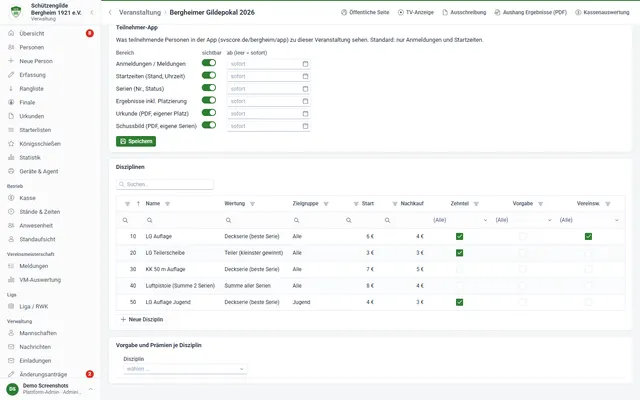
- Disciplines › New discipline: scoring (e.g. best series, total, distance value, lucky target), number of series and shots, target type, tenths yes/no, prices for start and re-entry as well as the club ranking.
- Classes: You maintain the age classes under Admin › Age classes; for each event you can additionally set handicaps (in points) and prizes per place.
- Switch running: the event appears at the cash desk, data entry and in the overview. Switch public: the results are visible on the internet.
- After saving, the page shows the event's short-name URL, e.g.
shootingscore.app/sv-musterstadt/pokalschiessen-2026, plus the buttons Public page and TV display. - Next year: select the event and click Copy – all disciplines are carried over.
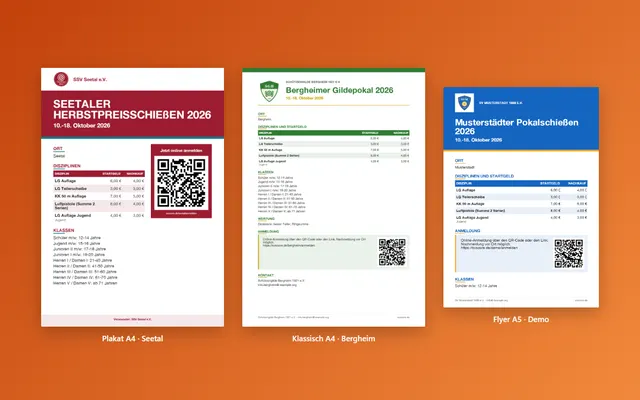
- Competition announcement (button in the event): svscore pre-fills disciplines, entry fees, dates and the QR code for online registration – choose the layout Poster, Classic or Flyer A5, add venue, prizes and notes and print as PDF or publish.
5Online registration & cash desk
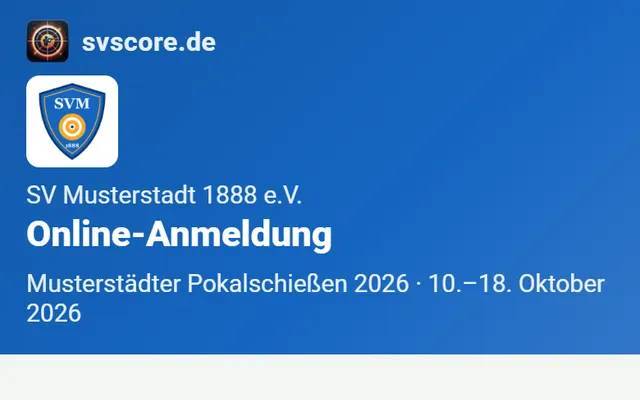
- Enable online registration in the event (registration period from/to). The registration page is
shootingscore.app/<club>/anmelden– shooters sign up themselves with privacy consent and receive a confirmation e-mail. - On competition day: open the Cash desk, search for a person (or create one via New person) and sell series – the price for start and re-entry is calculated automatically.
- A target label with barcode is printed for each series – automatically via the print service or directly in the browser.
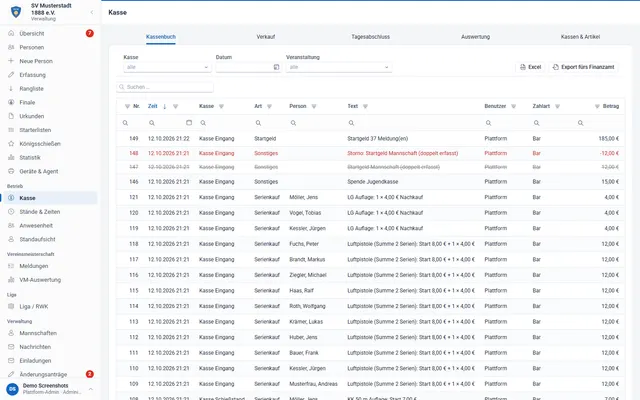
- Incorrect bookings are not deleted but cancelled with a reason (mandatory). In the evening: Daily closing tab with cash count record (target/actual/difference). Manage several cash desks in the Cash desks tab.
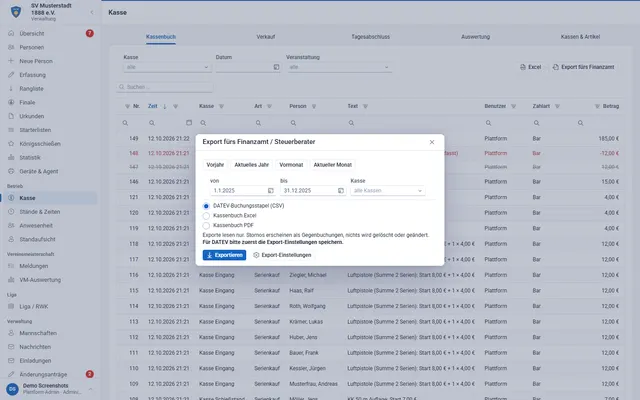
- Export for the tax office: In the cash book, use Export for the tax office to choose a period (previous year, current year, month or custom) and cash desk, and export as DATEV booking batch (CSV), Cash book Excel or Cash book PDF. For DATEV, save the export settings once (accounts, tax codes – with a suggestion for the chart of accounts). Exports change nothing; cancellations appear as reversing entries.
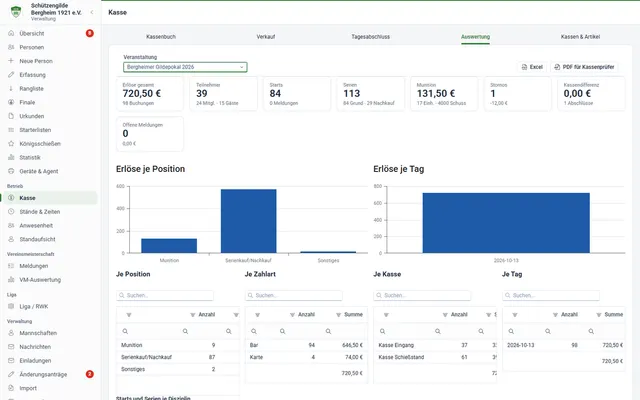
- After the competition: Evaluation tab, choose the event – revenue, participants, series per discipline and ammunition sales at a glance, as Excel or PDF for cash auditors.
6Enter shooters & series
Manual
- Open Data entry and scan the target's label (or type in the series number).
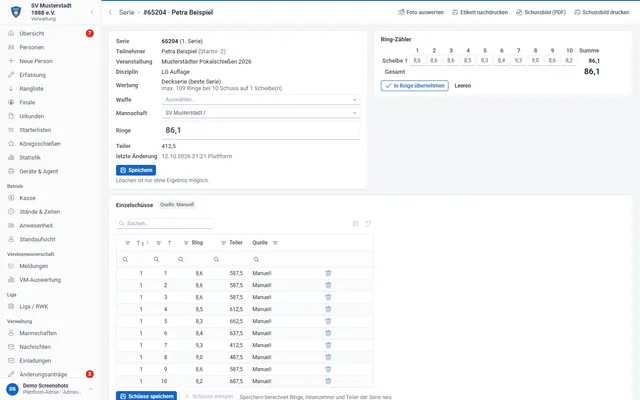
- Enter the points per target – with tenths, inner tens and distance value. svscore calculates the total itself; Last entered appears below.
Scoring machines & print service (svscore Agent)
- Admin area › Club › section Print service: Download installer (MSI) and run it as administrator on the Windows PC (cash desk or scoring).
- In the “Set up print service” dialogue, paste the print key (copy it on the same page) and choose the label printer. The service starts automatically and shows as “connected”.
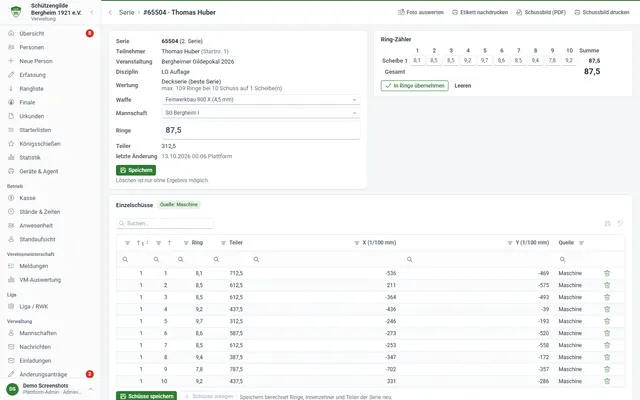
- Under Devices & Agent you can see the agent with its connected scoring machines (DISAG RM-III/RM-IV, RIKA, SAM 4000), status and last contact. With Assign you set which series the next target belongs to – points, distance values and the hit pattern then arrive automatically.
7Results lists, certificates & labels
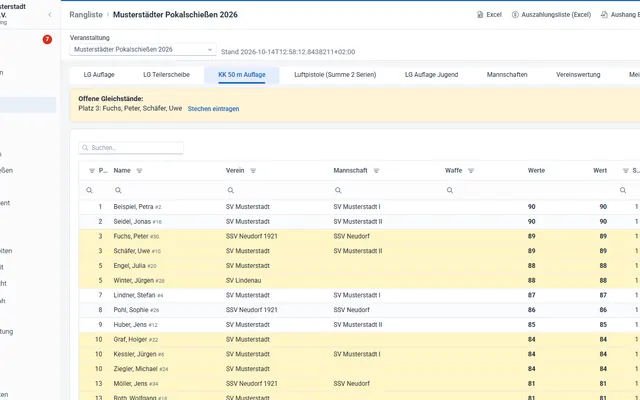
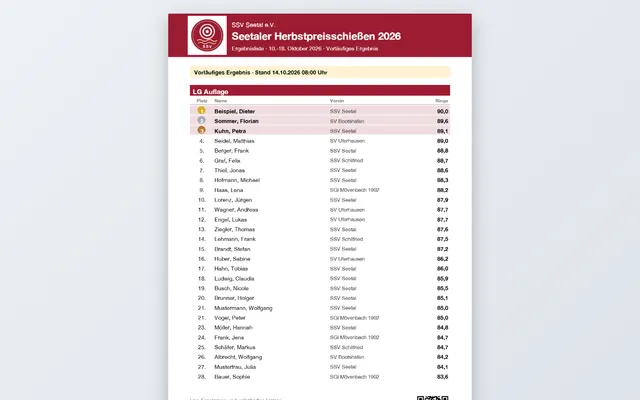
- Results list: results per discipline, team and club ranking. Ties are marked and listed at the top as Open ties – that is where you enter the shoot-off.
- Certificates: choose a discipline, mark the places and Create PDF – also for shoot-offs and teams.
- Start lists: per discipline Print or as Excel. Results lists, cash book and participants are also available as Excel.
- Reprint labels: at the cash desk for the series or – for the club championship – under Entries as Labels PDF.
- For the notice board: in the results list, Results notice (PDF) – A4 with club logo and QR code to the live results list, optionally only selected disciplines, top N or large print.
8Live results & TV display
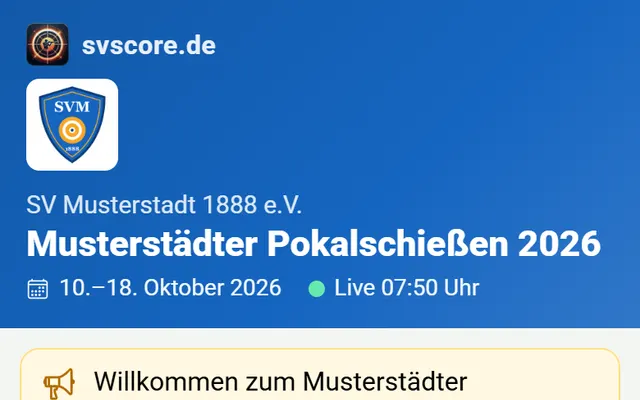
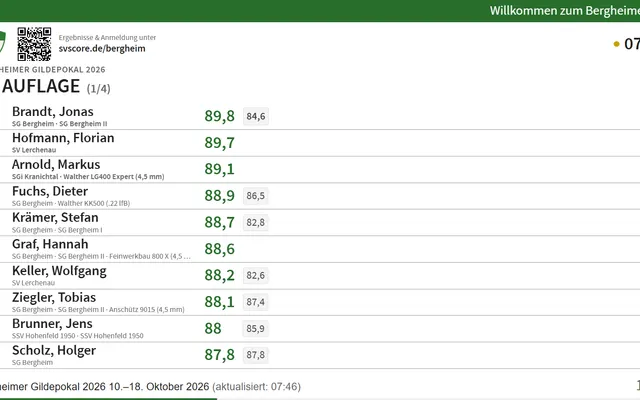
- If the event is public, the results are available at
shootingscore.app/<club>/<event>– new results appear without reloading. - For a TV or projector: click TV display in the event (the address ends in
/anzeige) and switch to full screen. The slides cycle automatically through all disciplines. - Admin area › Messages: manage notices for the results page and the display's news ticker.
9Participant app (QR code)
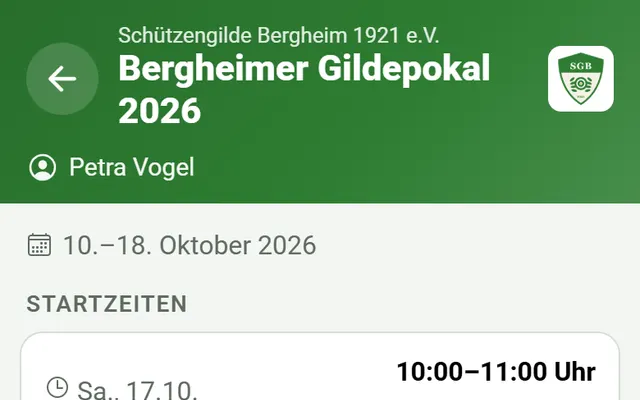
- Your club's app is at
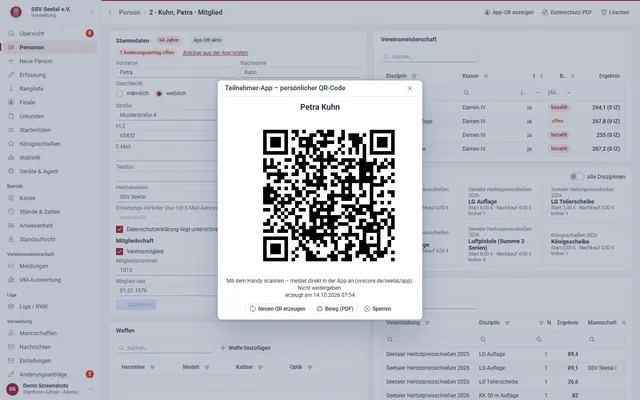
shootingscore.app/<club>/appand can be installed on a phone. - Password-free sign-in via QR code: it is in the online registration confirmation e-mail, on the cash desk receipt, or shown for the person under People. A blocked QR code stops working immediately.
- What the app shows (start times, series, results, certificates, shot patterns) is set per event in the Participant app section.
- Under “My details” shooters request changes – you approve them under Admin area › Change requests.
10Club championship & members' area
- Admin area › Events › New internal event: never public, no cash desk. Create disciplines with entry fees.
- Members register themselves in the members' area at
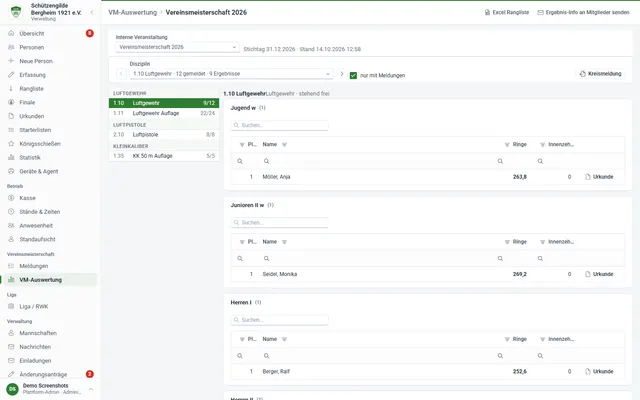
shootingscore.app/<club>/intern. - Club championship › Entries: check entries, add late entries, mark entry fees as paid, print labels and export the district (onward entry). svscore determines age classes according to DSB rules.
- Club championship › Championship results: placings per age class, certificates, Excel and district entry.
11League, king's shoot, ranges, statistics & association
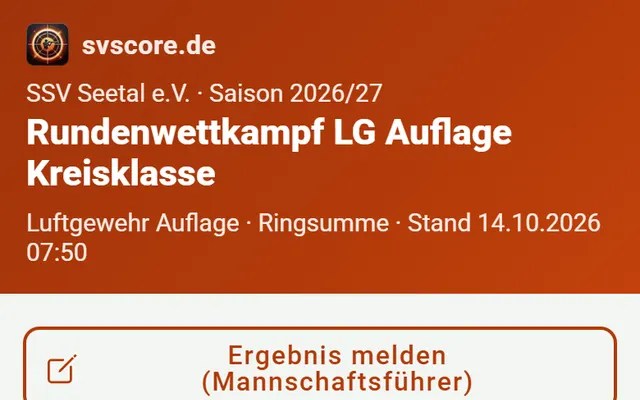
- League › League / RWK › New league: choose season, discipline and mode (points total or head-to-head), create teams, generate the fixture list. Team captains report results online, you confirm them.
- King's shoot: define titles (king, knight, youth king …), results stay hidden until the proclamation; afterwards title list (PDF) and certificates (PDF).
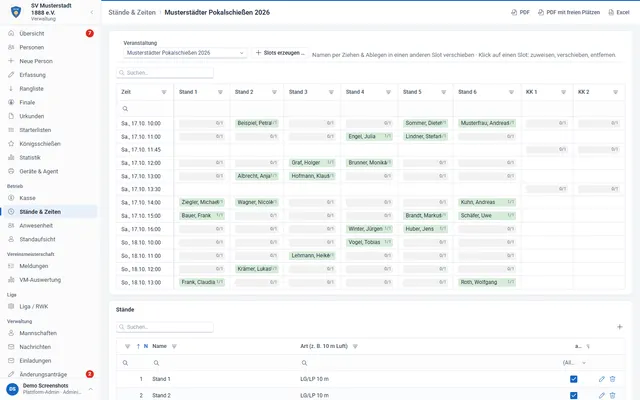
- Ranges & times: create ranges, generate time slots for several days (duration, break, places) and assign people – or shooters book online themselves.
- Statistics: shooting log per shooter, annual statistics and personal bests, all also as Excel.
- Admin area › Association: export for WSV, DSB (DAVID 21), BSSB or a custom profile; Admin area › Import for member and participant lists (CSV with preview).
12Subscription & invoices
- Admin area › Subscription & invoices shows the current package and usage per event (starters / limit).
- Book: Verein monthly €24, Verein yearly €240 or Veranstaltungspass €79 for one event (30 days).
- Maintain your billing address; all invoices are available there for download. Cancellation and payment details via Payment details & cancellation.
All packages compared: Pricing.
13FAQ & help
Do I need to install anything?
No. shootingscore.app runs in the browser on PC, tablet and phone. Only for automatic label printing and scoring machines do you install the print service (MSI) on a Windows PC.
Does it work without a label printer?
Yes – labels can be printed directly from the browser, and you can also enter results in data entry using the series number.
Can several helpers work at the same time?
Yes. Everyone gets their own login (Data entry or Admin role); cash desk, data entry and results lists update live.
How do I test before it gets serious?
Create a test event in the Basis package, sell a few series and take a look at the results list, certificate and TV display. Nobody but you can see a non-public event.
I have forgotten my password.
Use the reset link on the sign-in page or ask an admin of your club to send a password link under Admin area › Users.